AI Sprite Generator
Create 2D game sprites with AI for any asset your project needs. Describe the result, choose a visual direction, and generate a sprite to develop further in your game art workflow.
A general-purpose creation tool
What Is an AI Sprite Generator?
An AI sprite generator creates 2D visual assets from a written description or other creative input. Instead of drawing every idea from scratch, you can describe the subject, style, view, colors, and level of detail you need, then generate visual directions for your project.
Spritesheetmaker's AI Sprite Generator is a general starting point for sprite creation. It is not limited to characters, pixel art, or a single game genre. Use it when you need an original sprite concept, then continue with the dedicated sprite sheet, animation, editing, or object-specific tools required by your workflow.
Two ways to begin
Generate Sprites from Text or Reference Images
Start from a description when the idea is still open, or add a reference when composition and art direction need tighter guidance.
Text to Sprite
Write a focused description of the sprite you need. Include the subject, visual style, camera view, direction, color palette, scale, and details that must remain readable at game size. A clear prompt helps the sprite generator AI understand both what the asset is and how it should fit into your project.
Reference Image to Sprite
Upload artwork, a sketch, or another visual reference to guide the result. The image can communicate composition, proportions, colors, or art direction while your prompt explains what should change. Review each result and refine the prompt or reference when you need another variation.
Beyond one asset type
Create Sprites for Any Game Asset
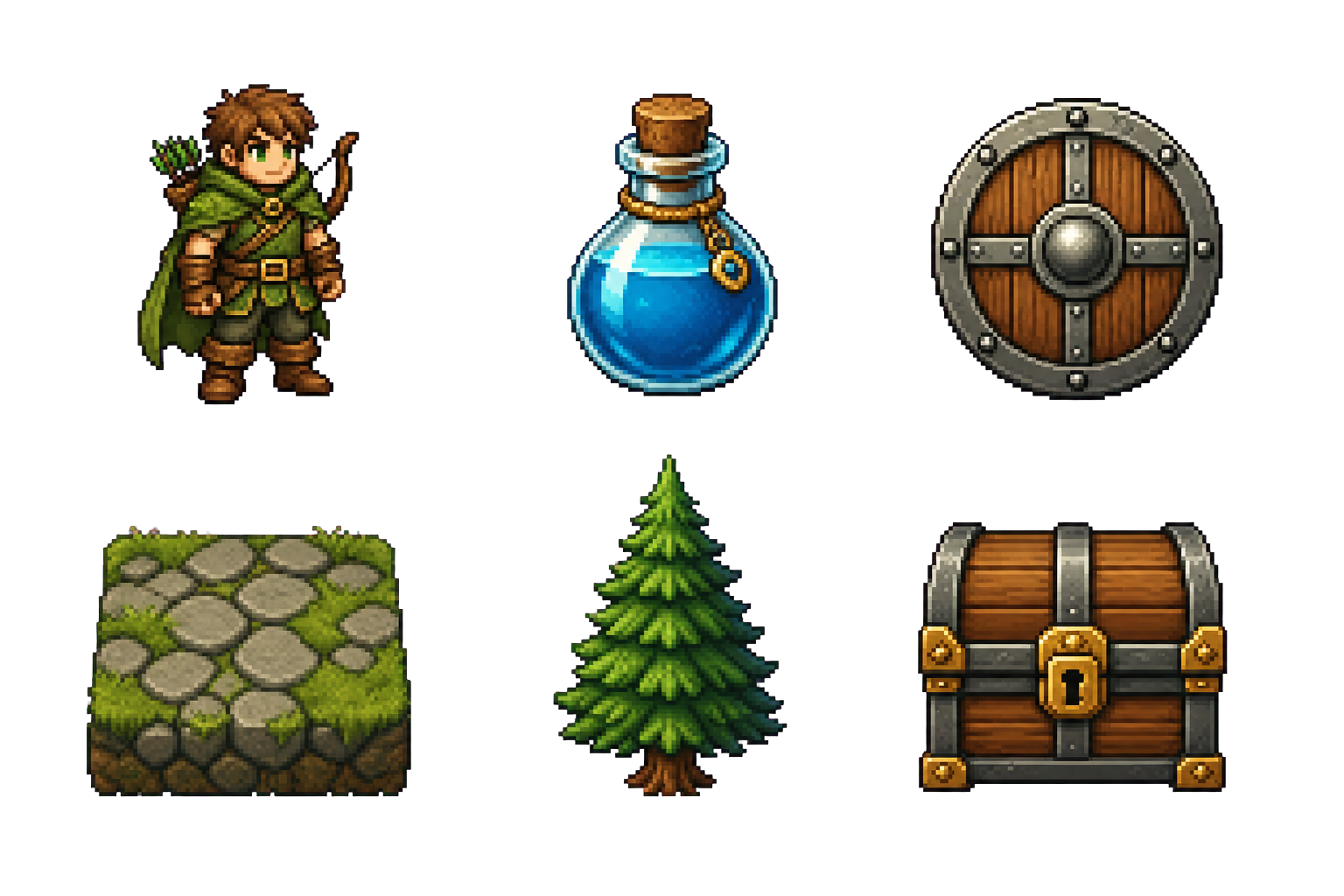
Create sprites for many parts of a 2D game, including characters, NPCs, props, icons, maps, backgrounds, tiles, textures, clothing, equipment, and other visual assets.
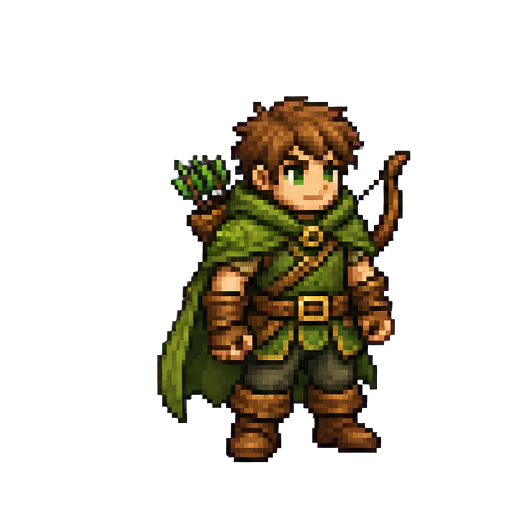
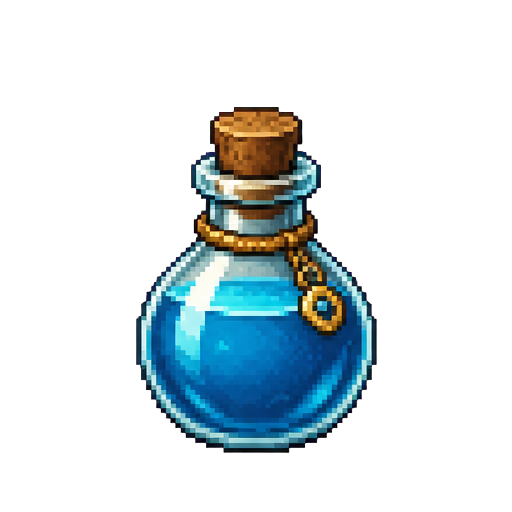
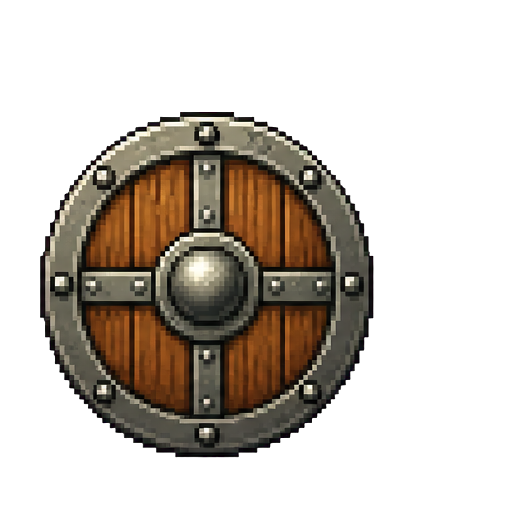
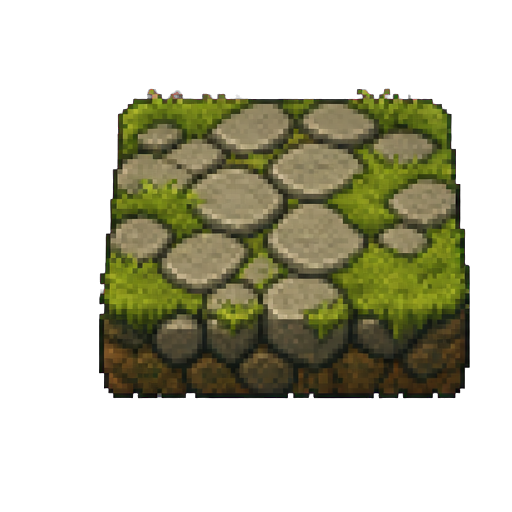
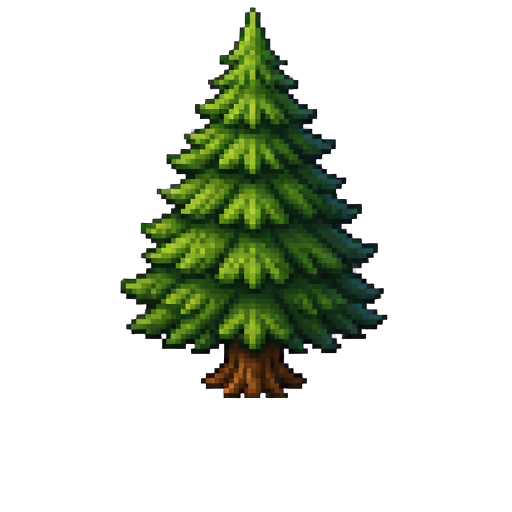
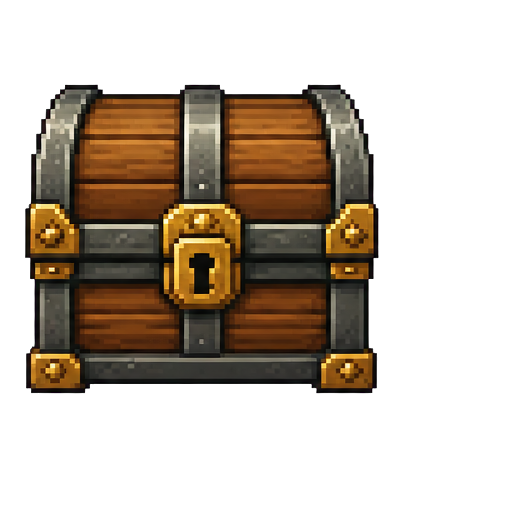
These examples show the range of subjects the general game sprite generator can handle; they are not separate modes or character-only templates. Dedicated generators can provide more focused controls for individual asset types.
Art direction and game space
Explore Styles, Views, and Directions
A 2D sprite generator should help the result fit the visual language and camera system of the game, not force every idea into the same template.
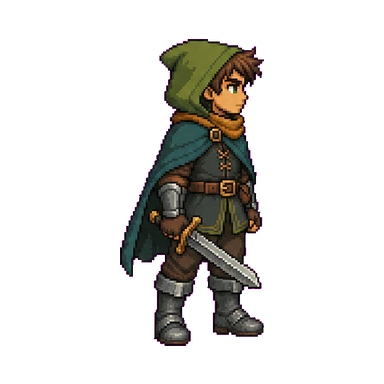
Choose the visual treatment
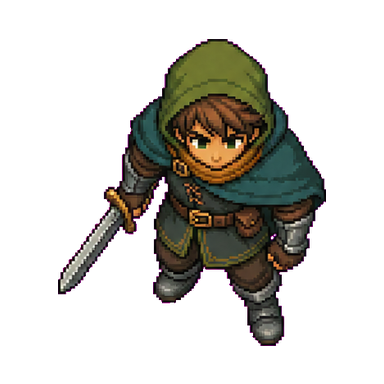
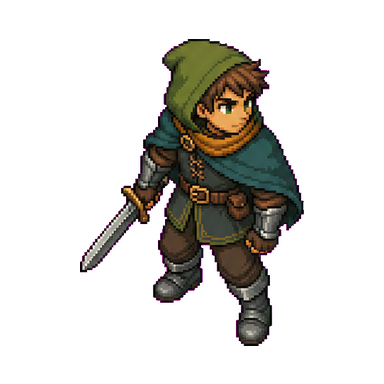
Describe a clean 2D look, pixel-art treatment, retro palette, painted game art, or another supported direction. Pixel art is one option, not the limit of the general AI sprite maker.
Match the camera view
Use a side view for a platformer, a top-down composition for a strategy or adventure game, or an isometric view when the asset needs to read in angled game space.
Control facing direction
Select a specific direction or let the generator choose automatically. Directional controls help prepare a readable base for later object-specific, sprite sheet, or animation work.
A focused creation loop
How to Generate a Sprite
Move from an idea to a reviewable 2D asset without mixing sprite generation with animation, sheet layout, or manual editing.
- 01
Describe the asset
Identify the subject and its role in the game. Add the style, view, colors, scale, and important visual details.
- 02
Add visual guidance
Choose settings that match the project and upload a reference when it communicates the intended design more clearly than text alone.
- 03
Generate and review
Check silhouette, readability, proportions, colors, and consistency. Adjust the prompt or settings when you need another direction.
- 04
Continue in the right tool
Download the transparent PNG, build a sprite sheet, create animation frames, or refine the result with a dedicated workflow.
Part of a wider production process
Where AI-Generated Sprites Fit in Your Workflow
An AI sprite generator can help during early concept exploration, rapid prototyping, game jams, asset planning, and broader 2D content production. It is especially useful when you need to compare several visual directions before committing more time to drawing, animation, or implementation.
Review every generated sprite against your project's art direction, target resolution, technical requirements, and licensing rules. Continue in a dedicated tool when the next step requires animation, sprite sheet layout, editing, or controls for a specific asset type.
- Explore
- Compare visual directions quickly
- Prototype
- Test readable assets at game scale
- Review
- Check style and technical fit
- Continue
- Move into a specialized workflow
Common questions
AI Sprite Generator FAQ
What the general generator covers, what to include in a prompt, and when to move to a dedicated sprite tool.
What is an AI sprite generator?
An AI sprite generator is a tool that creates 2D game sprites from a description or another supported creative input. Describe the subject and visual direction, generate a result, then review and continue developing it.
Can the AI Sprite Generator create more than characters?
Yes. The general generator supports different sprite subjects, including characters, NPCs, props, icons, maps, backgrounds, tiles, textures, clothing, equipment, and other game assets. Dedicated generators provide more focused workflows for individual asset types.
Is this only a pixel art sprite generator?
No. Pixel art is one possible visual direction, but the general AI Sprite Generator is intended for broader 2D sprite creation. Choose a supported style that fits the art direction of your game.
Can I generate a sprite from a reference image?
Yes. Upload artwork, a sketch, or another visual reference to guide composition, proportions, colors, or art direction. Use the prompt to explain what should influence the new sprite and what should change.
Does this tool create sprite sheets or animations?
This page focuses on general sprite generation. Use the dedicated Sprite Sheet Maker to arrange sprite sheets and the sprite animation tool when you need multiple frames, movement, timing, or animation export.
What should I include in a sprite prompt?
Describe the subject, game context, visual style, view, direction, colors, scale, and details that must remain readable. Keep the prompt focused on one clear asset and refine it after reviewing the first result.
Can I use generated sprites in a commercial game?
Commercial use depends on the current plan, generation model, and license terms. Review the licensing information provided by Spritesheetmaker before using generated assets in a published or commercial project.
Create the asset your game needs
Start with one clear sprite idea.
Describe the subject, set the visual direction, and generate a transparent 2D game asset in one workspace.